
Designing PLR products in Canva is an incredibly fun and rewarding process, and it’s something that anyone can do—even if you’re just starting out! Whether you’re looking to create stunning printables, digital templates, or eBooks, Canva offers an intuitive platform that makes design accessible to everyone. In this guide, we’ll walk you through the steps to create high-quality PLR products that not only look professional but also stand out in the marketplace.
What is PLR and Why Use Canva?
Before diving into the how-to, let’s quickly recap what PLR products are. PLR (Private Label Rights) products are ready-made content or digital products that you can customize, rebrand, and sell as your own. They’re an excellent way to quickly expand your product line, offer value to your audience, and generate passive income.
Now, why Canva? Canva is a powerful, user-friendly design tool that’s perfect for creating professional-looking products without the need for advanced graphic design skills. With Canva, you can drag and drop elements, customize colors, fonts, and layouts, and create designs that are as simple or as complex as you want them to be.
Step 1: Identify Your Niche and Audience
The first step in designing PLR products is to identify your niche and target audience. Are you focusing on fitness, self-improvement, finance, or education? Understanding your niche helps you tailor your designs and content to meet the specific needs of your audience.
Pro Tip: Research the latest trends in your chosen niche to see what types of products are in demand. This will help you create relevant and appealing PLR products that sell.
Step 2: Choose the Type of PLR Product
Next, decide what type of PLR product you want to create. Canva is versatile enough to handle a variety of product types, including:
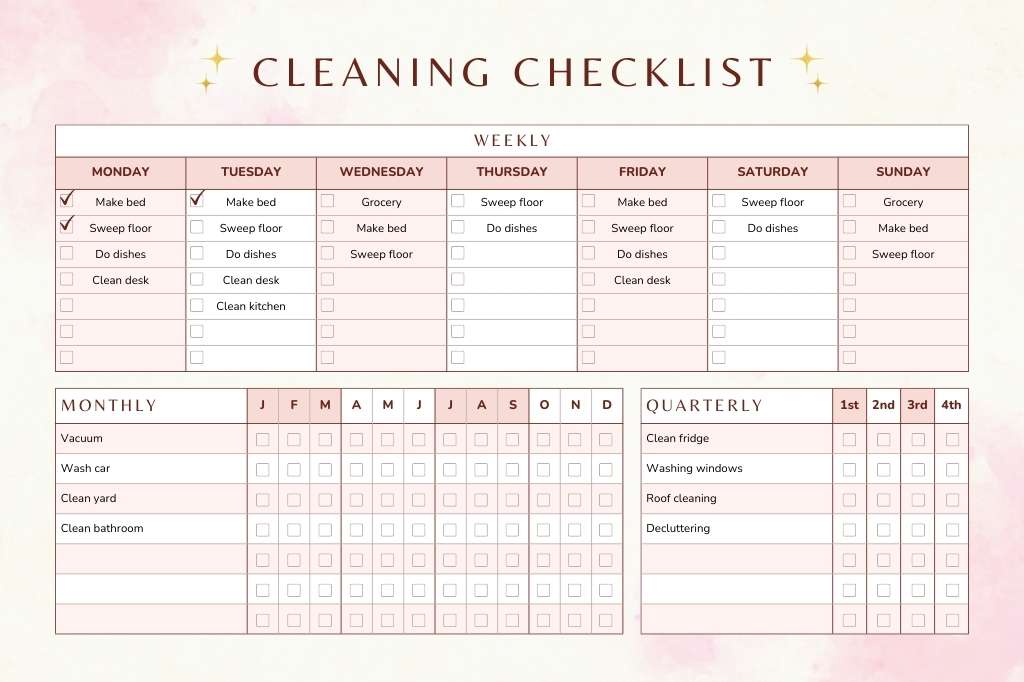
- Printables: Think planners, checklists, and worksheets.
- Digital Templates: Social media templates, eBook layouts, and presentation slides.
- Ebooks and Guides: Informative content packaged in an attractive format.
- Course Materials: Create beautiful course handouts, slides, and workbooks.
Each product type has its unique appeal and can cater to different segments of your audience. Choose one that aligns with your niche and offers value to your customers.
Step 3: Plan Your Design
Before jumping into Canva, it’s important to have a clear plan for your design. Start by sketching out a rough layout of your product. Decide on the number of pages, the overall structure, and the key elements you want to include.
Pro Tip: Take a look at successful PLR products in your niche to get inspiration for your design. Note what works well and think about how you can add your unique twist to make your product stand out.
Step 4: Start Designing in Canva
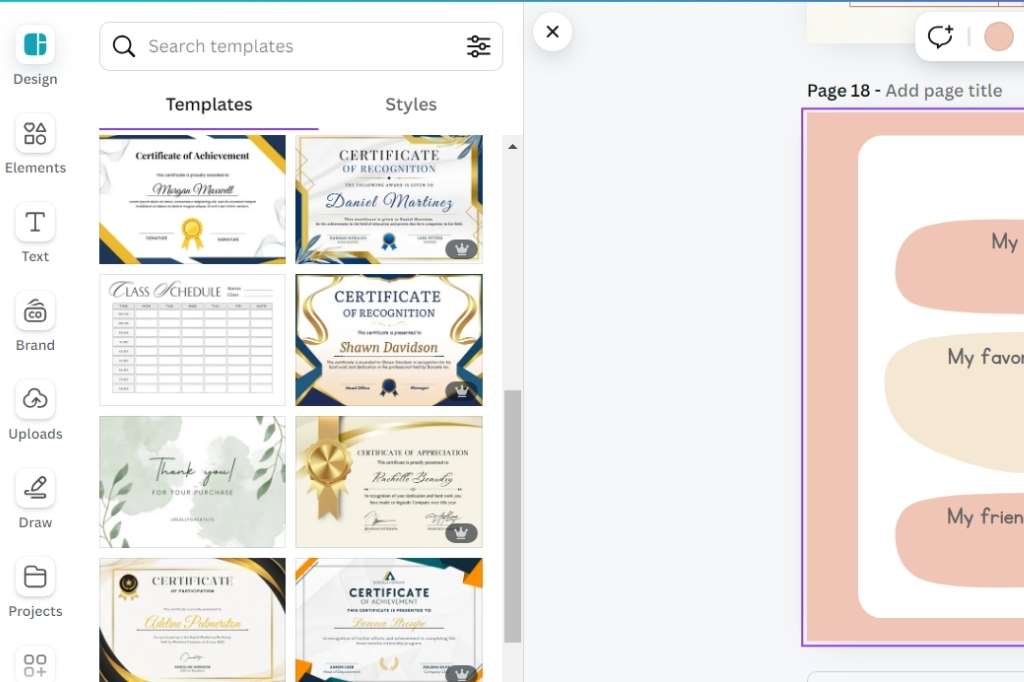
Now comes the fun part—designing your PLR product in Canva! Here’s how to get started:
- Create a New Design:
- Log in to your Canva account and click on “Create a Design.” Select the dimensions that best suit your product. For instance, an A4 size is great for printables, while 1080x1080px works well for social media templates.
- Choose a Template:
- Canva offers a wide range of pre-designed templates that you can customize to fit your needs. Browse through the categories or use the search function to find a template that matches your vision.
- Customize Your Design:
- Change the colors, fonts, and images to match your brand or the theme of your niche. Canva allows you to upload your own images or choose from thousands of stock photos.
- Use Canva’s drag-and-drop feature to add elements like shapes, icons, and text boxes. Experiment with different layouts until you’re satisfied with the design.
- Add Your Content:
- If you’re creating an eBook or guide, start adding your text content. Canva makes it easy to format text and create a cohesive design across multiple pages.
- For printables or templates, focus on the functionality and usability of the design. Make sure your layout is clean, and the elements are easy to interact with.
Pro Tip: Keep your design simple and avoid overcrowding your pages. White space is your friend—it helps make your content more readable and visually appealing.
Step 5: Review and Refine
Once your design is complete, take the time to review it carefully. Check for any spelling or grammar errors, ensure that all elements are aligned properly, and that the overall design looks polished and professional.
Pro Tip: Show your design to a few people for feedback. Sometimes, a fresh pair of eyes can catch things you might have missed.
Step 6: Download and Package Your Product
After you’ve refined your design, it’s time to download your product. Canva allows you to download your design in various formats, such as PDF, PNG, or JPG. Choose the format that best suits your product.
- For Printables: PDF is usually the best option.
- For Digital Templates: PNG or JPG works well for individual elements, while PDF is great for multi-page documents.
Once downloaded, package your product neatly. If you’re offering multiple files (e.g., a set of printables), consider zipping them into one file for easier delivery.
Step 7: Create a Mockup
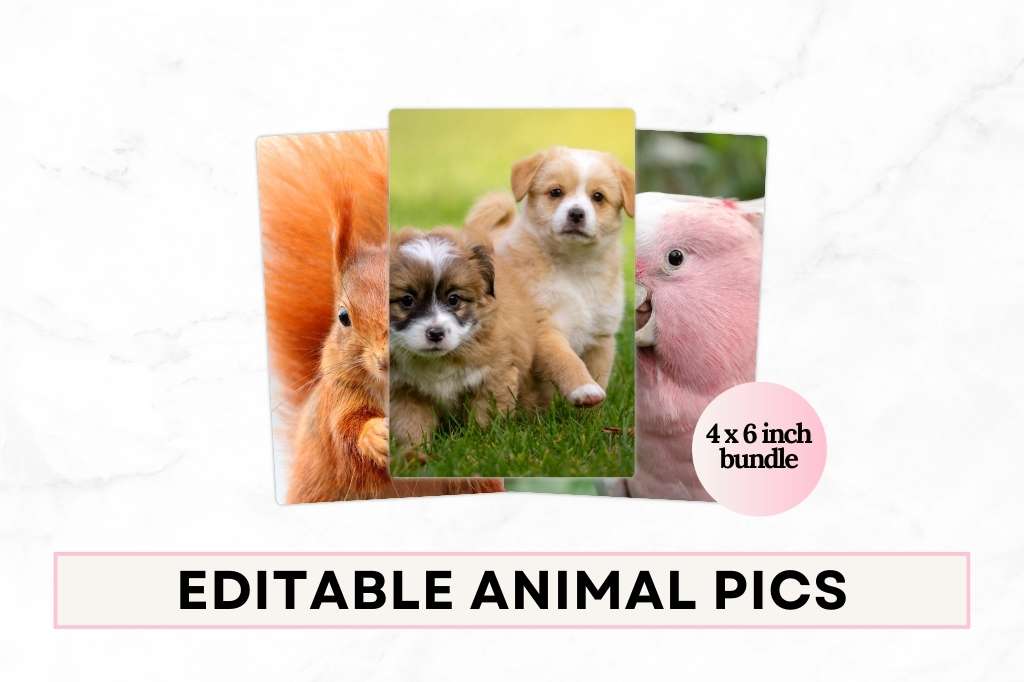
To help market your PLR product, consider creating a mockup. A mockup is a high-quality image that shows what your product will look like when used. Canva has plenty of mockup templates, or you can use third-party tools like Smartmockups to create realistic representations of your product.
Step 8: Set Up Your Sales Page
With your PLR product ready, it’s time to set up your sales page. This is where potential customers will learn about your product and decide whether to purchase it. Make sure your sales page includes:
- Product Description: Explain what your product is, what’s included, and how it benefits the customer.
- High-Quality Images: Use your mockups to visually showcase your product.
- Call to Action: Encourage visitors to purchase your product with a clear and compelling call to action.
Step 9: Promote Your PLR Product
Promotion is key to getting your PLR products in front of the right audience. Utilize social media, email marketing, and content marketing to spread the word about your new product.
- Social Media: Share images and details of your product on platforms like Pinterest, Instagram, and Facebook.
- Email Marketing: Send out newsletters to your subscriber list highlighting the features and benefits of your product.
- Content Marketing: Write blog posts or create videos that tie into your product, and include a link to your sales page.
Step 10: Monitor and Improve
After launching your PLR product, keep an eye on how it performs. Track your sales, gather feedback from customers, and look for ways to improve your product and sales strategy.
Pro Tip: Use feedback to create updated versions of your PLR products or to inspire new product ideas. Continuously improving your offerings will help you build a loyal customer base.
Final Thoughts
Designing PLR products in Canva is a creative and rewarding process that can lead to a successful online business. By following these steps, you’ll be well on your way to creating high-quality PLR products that stand out in the market. Remember, the key is to start with a clear plan, keep your designs simple and user-friendly, and always be open to feedback and improvement. Happy designing!